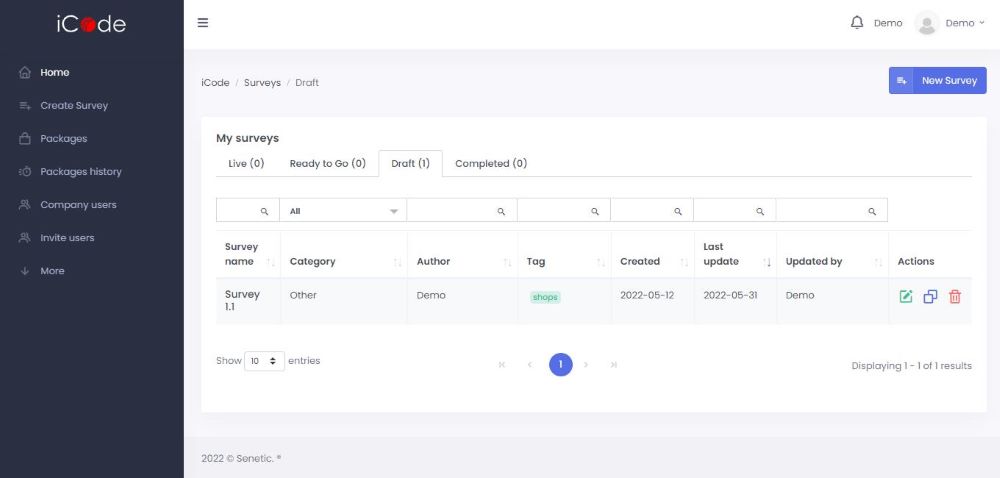
After logging in to the iCodeTM platform, on the left side of your desktop, you can see a menu with the most important features of iCodeTM.
From this place you can Create a Survey. You may also access Packages, select the most suitable one for you and buy it, to minimize costs of a single survey. It is possible to enter the Packages history, showing packages you have purchased in the past. You are able to see the Company users of a platform and Invite new Users to join. You may also access your Old reports. There is also a drop-down option More, where you may access Cloud Images, Privacy Policy, Terms & Conditions, Help and Contact us options.
In the middle of a screen you can see My surveys menu with four categories. In Live section you can track your current active surveys and check the progress of data collection. Through Ready to go you can enter your surveys with completed design that are not online yet. In Draft section you have an access to draft versions of surveys which design has not been completed yet. You can come back to them and finish them in the future. In Completed section you can find finished surveys, with completed samples. The reports from them are ready to be downloaded.
Each of your surveys is indicated with its Name, Category, Author and a date indicating when it was Created. If you decide to add some Tags to track your survey better, they are also going to be visible in this section. If you or somebody else modifies your survey in the meantime, you can also track who and when implemented the last changes under Last update and Updated by fields.
On the right sight of description of each survey you can see an Actions field. Dependent on the current state of your survey you can see different icons there. If your survey is Live, you may see three icons: green, blue and red, using which you can accordingly view survey’s settings and manage the survey, duplicate the survey or delete it. If your survey is Ready to go, you have an access to three icons: green, blue and red, using which you can accordingly edit survey’s settings, duplicate the survey or delete it. If your survey is a Draft, you have an access to the same three icons: green, blue and red, using which you can accordingly edit survey’s settings, duplicate the survey or delete it. If your survey is already in Completed section, you see up to four icons: green, blue, red and a blue circle, using which you can accordingly view survey’s settings and manage the survey, duplicate the survey, reopen it or create a new wave.
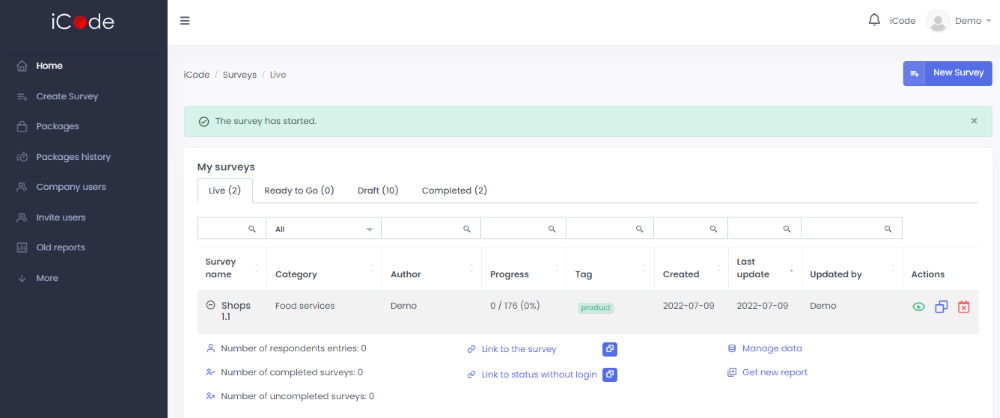
If you want to take a quick overview on the progress taking place in your survey which is currently Live, you can do it through this desktop. After clicking on a name of the particular survey you can see a drop-down list box and view a number of respondents that entered the survey, that have completed a questionnaire and the ones that have not. You may also quickly access the link to the survey and to a status without login, as well as manage your data or get a new report.