At this step, in Redirects section, you may set up redirections. They may be required if this survey is going to be a part of a bigger project or a panel provider is responsible for data collection. This option allows you to connect an iCode survey with other platforms and pass variables between surveys.
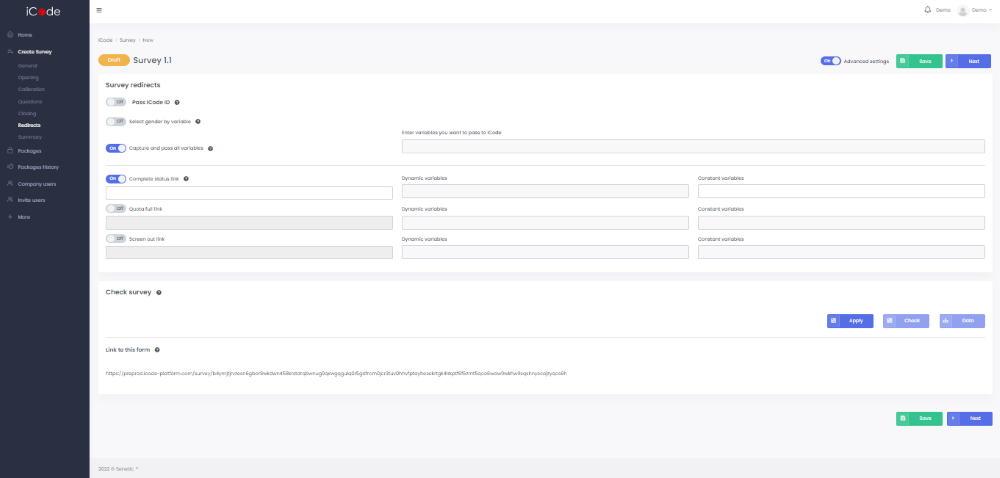
There are two ways in which you can establish redirections:
To set up redirections quick and easy, turn on the Pass iCode ID button. Secondly, enter redirection links, which are addresses to which respondents will be redirected after completing the iCode survey, in case the declared quotas was reached or if respondents do not meet requirements.
Another way to set up redirections is to turn on the button Capture and pass all variables. Do not turn it on when you need to capture some specific variables from the link or you want to pass different variables to other links (Complete status link, Quota full link or Screen out link). Secondly, enter redirection links.
There are also a few advanced options you can use at this step:
You can Enter variables you want to pass to iCode yourself. This option is visible only when Capture and pass all variables option is enabled. Each specified variable will be captured and saved in excel/CSV file next to the survey data.
You may add Dynamic variables yourself, by writing their names and separating them using the space bar. All specified dynamic variables will appear in the final link . If the option Capture and pass all variables is active, there is no need to specify them separately.
If you want to add Constant variables to the link, enter their names and values, e.g. STATUS=completed and separate them using the space bar. All added variables will apear in the final link.
You can check if the redirections work and if a survey runs properly in the section Check Survey.
The link in the Link to this form section allows you to set up redirections without logging in to the platform – it is dedicated mostly to external panel providers.