When you are done creating your survey, you can quickly overview its structure in a Summary step.
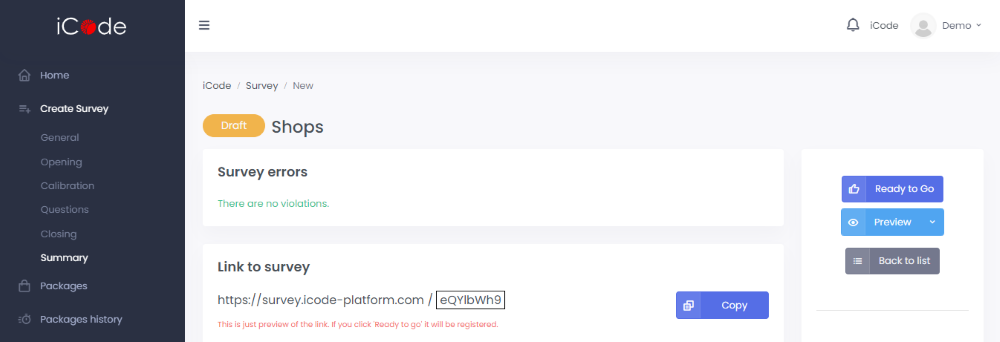
First, as it is created, your survey is a Draft.
In the Survey Errors part you can see which parts of the survey were filled in incorrectly or are still missing.
In the upper right corner of the website there are three buttons. If you want to move your survey from Draft to Ready to go section, click on Ready to go button. If you want to go through the entire survey to check it, click on the Preview button. Your answers will not be saved. Clicking on the button Back to list will bring you back to the Home section.
When your survey is a completed draft, at this stage you can also preview the link that you will be later sending to your respondents. The link is not registered yet.
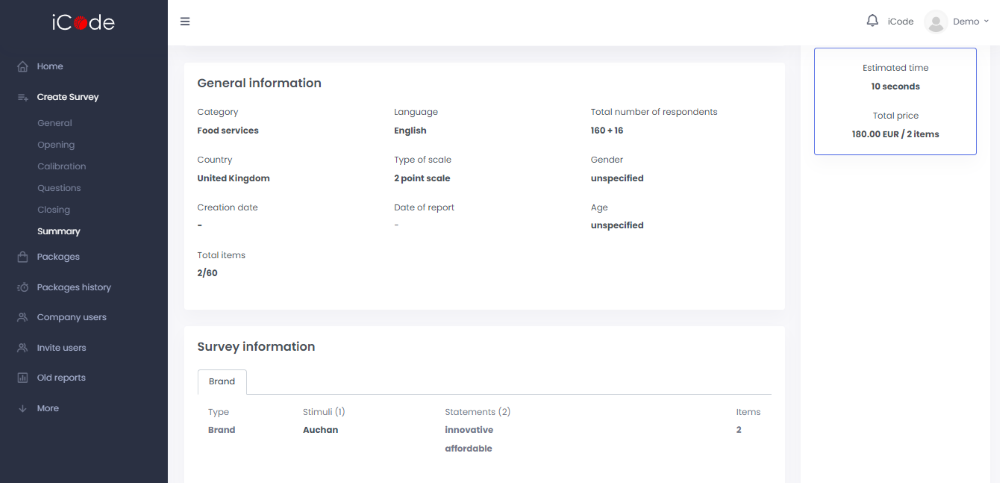
In the General information part you can find detailed information about the survey and a structure of a sample you want to test.
In the blue square on the right side of a website you can find the an estimated time of your study with the total price and currency.
In the Survey information section you can find an overview of a structure of created survey.
At this stage you can still edit your survey settings.
When you decide that you are satisfied with your survey, click on Ready to go button. Your survey is going to move from Draft to Ready to go section to which you are going to be forwarded next.
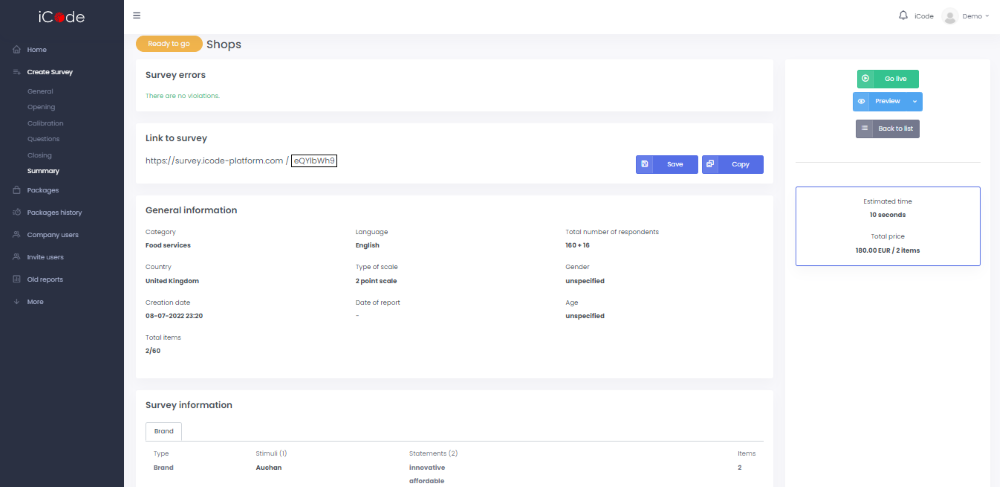
At the Ready to go stage you are still allowed to modify your survey’s settings, duplicate or delete it. You may also Preview your survey. The link to your survey is already available and it is possible for to Copy or Save it. If you want to start your survey and data collecting process, click the Go live button.
After making the survey Live, the data collecting process starts. To access the link to the survey, which you shold forward to your respondents, click on the green icon of an eye in the Actions section, which is going to forward you to a screen summarizing the structure if your survey.
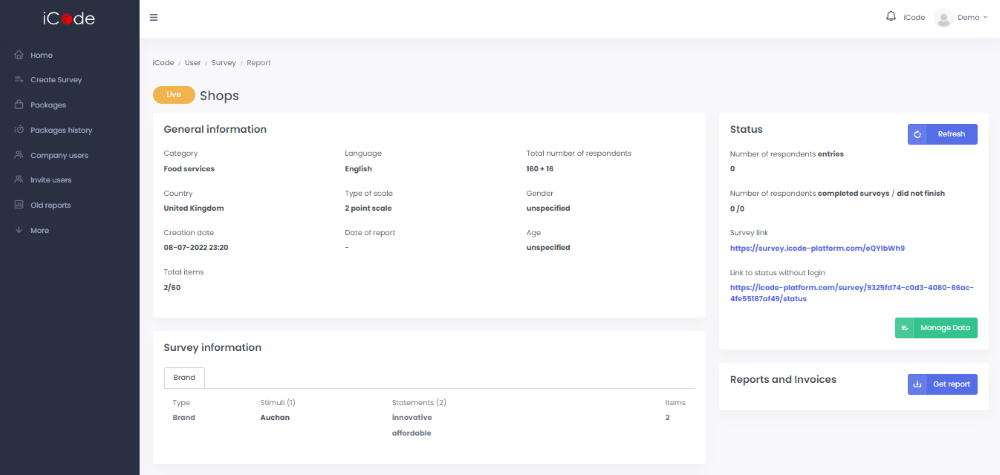
As your survey is Live, in the General information part you can find detailed information about the survey and a structure of a sample you decided to test.
In the Survey information section you can find an overview of a structure of created survey.
At this stage you do not longer have an option edit your survey settings.
In the Status section you can observe statistics concerning the particular survey. You may see a number of respondents entries, a number of people who have completed a survey and a number of respondents that entered the survey, but did not finish or were excluded. In this section there is a link to your survey that should be distributed to your respondents and a link to status without login, through which you can monitor a current survey status.
If you need to download data regarding your sample or closer analyse or eliminate from your sample data obtained from particular respondents, click on a Manage Data button.
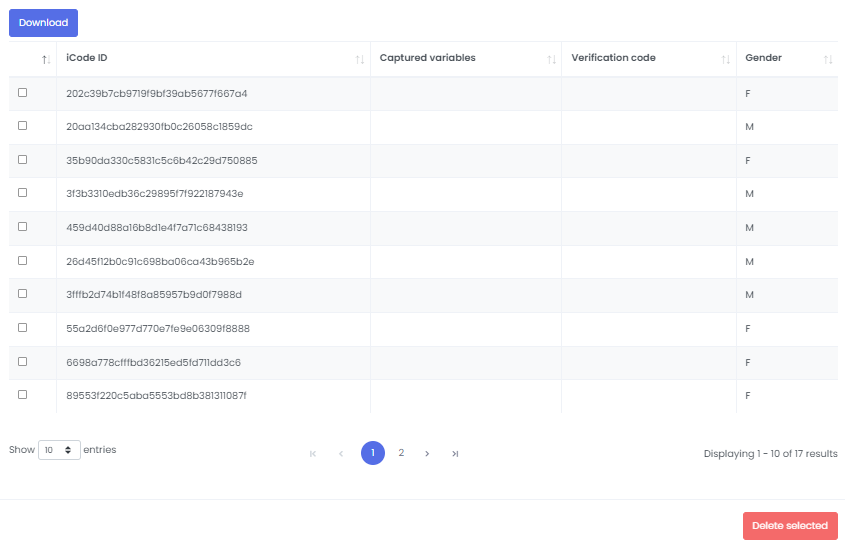
If your survey reached a minimum number of respondents and you want to download your results, click on the Get Report button. For further explanation, see PAYMENT METHODS AND PACKAGES section in this Help.
After clicking the eye icon in Completed section, you are going to be forwarded to a screen summarizing the structure of your survey.
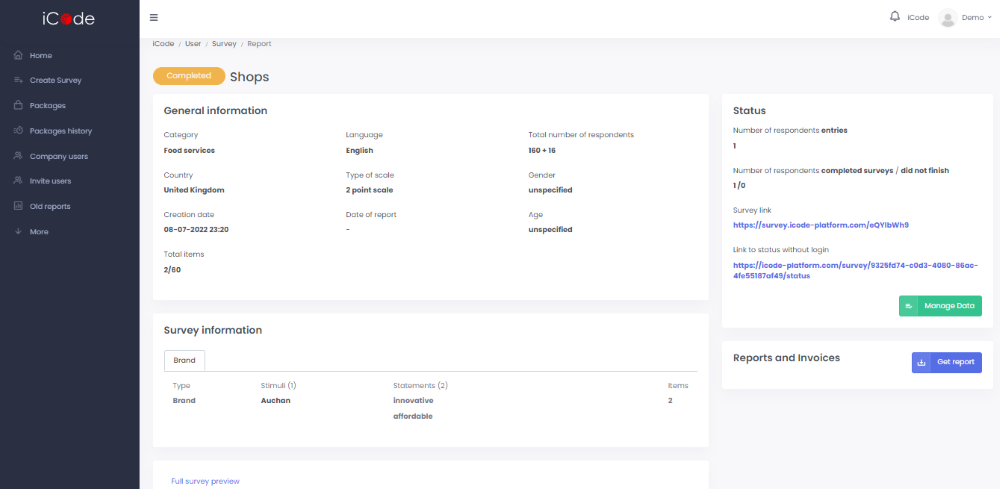
The interpretation of different parts of the summarizing screen should be analogical to the Live section.
If your survey reached a minimum number of respondents or you decided to end it earlier and you want to download your results, click on the Get Report button and follow the steps described in PAYMENT METHODS AND PACKAGES section.